
GlazeWM A Modern Window Management Solution for Windows
Experience the power of i3-style window management on Windows. Automatic tiling, keyboard-driven workflow, and complete customization.
Supports Windows 10 & 11 • MIT License • v3.0+
Features
efficient window management
Automatic Window Tiling
Windows automatically arrange themselves in efficient layouts. No manual resizing needed.
Keyboard-Driven Workflow
Control everything with customizable keyboard shortcuts. Keep your hands on the keys.
Workspaces & Layouts
Organize windows across multiple virtual workspaces with different layout modes.
Lightweight & Fast
Minimal resource usage. GlazeWM runs quietly in the background without slowing you down.
YAML Configuration
Simple, human-readable config files. Customize every aspect of your window management.
Native Windows Support
Built specifically for Windows 10 & 11. No WSL or compatibility layers required.
GlazeWM vs. PowerToys FancyZones
While both tools aim to organize windows on Windows 10 and 11, they serve very different types of users.
The "Manual" vs. "Automatic" Philosophy
- PowerToys FancyZones (Manual Tiling): Think of FancyZones as a “template” system. You define specific zones on your screen, and you must manually drag windows into those zones (usually while holding the Shift key). It is perfect for users who want pixel-perfect control and don’t mind using a mouse.
- GlazeWM (Automatic Tiling): GlazeWM is a “dynamic” tiler. You don’t drag windows; the software automatically calculates where a window should go the moment it opens. If you open three apps, GlazeWM splits your screen into three equal parts instantly. It is built for a keyboard-first, “zero-mouse” workflow.
| Feature | PowerToys FancyZones | GlazeWM |
|---|---|---|
| Logic | Static / Template-based | Dynamic / Automatic |
| Primary Input | Mouse (Drag & Drop) | Keyboard Shortcuts |
| Config Style | Graphical UI (GUI) | YAML Configuration File |
| Learning Curve | Low (Beginner Friendly) | Moderate (Hotkey focused) |
| Workspace Support | Native Windows Desktops | Built-in Custom Workspaces |
- The Verdict: If you are a casual user who wants to keep a browser on the left and Spotify on the right, FancyZones is enough. However, if you are a developer or power user who wants to manage 10+ windows without ever touching your mouse, GlazeWM is the superior choice.
GlazeWM vs. i3wm
For many years, Linux users have enjoyed the efficiency of i3wm (the iconic tiling window manager). GlazeWM was specifically designed to bridge the gap between Windows and Linux, bringing that same “hacker-style” productivity to the Microsoft ecosystem.
How GlazeWM Replicates i3wm
- YAML-Based Configuration: Just like i3 uses a text-based config file, GlazeWM uses a .yaml file. This allows you to define complex rules, such as making specific apps “float” by default or assigning them to specific workspaces.
- Focus-Based Navigation: In i3, you navigate between windows using Mod + H/J/K/L. GlazeWM adopts this same philosophy, allowing your fingers to stay on the “home row” of your keyboard at all times.
- Workspaces (Virtual Desktops): GlazeWM implements workspaces that behave more like i3 than the native Windows “Virtual Desktops.” You can switch between them instantly with Alt + 1, Alt + 2, etc., making it easy to separate your coding environment from your communication tools (Slack/Discord).
Why use GlazeWM instead of just switching to Linux?
Many professionals are forced to use Windows due to software compatibility (Adobe, Office, etc.). GlazeWM allows you to keep the Linux-style workflow while staying on the OS you need for work. It turns Windows from a cluttered, overlapping window mess into a structured, tiled environment that feels like a customized Arch Linux setup.
How it Works
GlazeWM is a tiling window manager for Windows, which means it automatically arranges windows on your screen without overlapping. Here’s how it works:
Window Tiling Logic Explained
- GlazeWM organizes open windows into non-overlapping tiles.
- When you open a new application, GlazeWM automatically places it in an available slot in the current layout.
- Layouts can be:
- Vertical Split: Windows stacked side by side.
- Horizontal Split: Windows stacked top to bottom.
- Stacked/Tabbed Layout: Multiple windows in one space, switchable via keyboard.
Focus Management
- GlazeWM uses a focus-based system to know which window is active.
- You can switch focus using keyboard shortcuts (arrow keys or defined hotkeys).
- The focused window is the one you interact with—typing, closing, or moving.
Benefits:
- No need to click windows with the mouse.
- Quickly switch between tasks.
Example Shortcut: Alt + h/j/k/l to move focus left/down/up/right (similar to i3).
Workspace and Container Concepts
- Workspace: A virtual desktop that holds a set of windows.
- You can switch between workspaces to separate tasks (e.g., coding in one, browsing in another).
- Container: A grouping of windows within a workspace.
- Containers define the layout structure (vertical, horizontal, tabbed, or stacked).
- Allows nesting layouts for more complex setups.
Example:
- Workspace 1: Code editor + Terminal side by side.
- Workspace 2: Browser + Music app stacked horizontally.
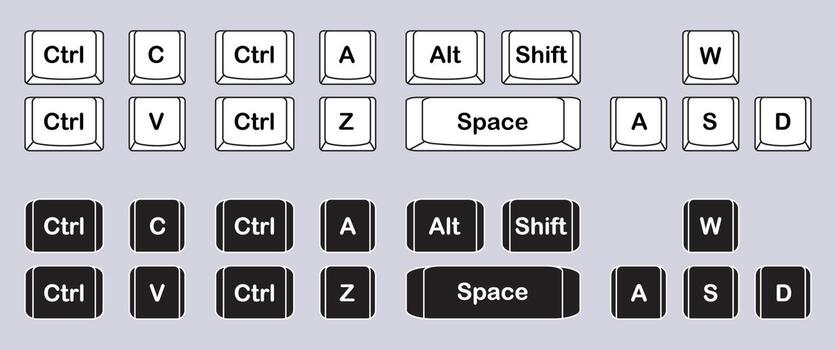
Keyboard Shortcuts and Commands
GlazeWM is keyboard-driven, meaning you rarely need a mouse.
Common shortcuts:
- Mod + Enter → Open a new application
- Mod + Arrow Keys → Move focus between windows
- Mod + Shift + Arrow Keys → Move window positions
- Mod + Number → Switch to workspace
- Mod + q → Close focused window
Advanced users can customize shortcuts in the config file for personal workflow.
Why keyboard shortcuts matter
- Speed: Navigate and organize windows faster.
- Efficiency: Keep hands on the keyboard, minimal mouse use.
- Consistency: Same shortcuts work across workspaces and layouts.
Installation Guide
Downloading GlazeWM
- Go to the official GlazeWM GitHub repository or official website glazewm.com .
- Look for the latest release (usually under the “Releases” tab).
- Download the Windows executable (.exe) or installer package.
- Ensure you download from official sources to avoid malware or unofficial versions.
Installation Steps on Windows
- Run the Installer: Double-click the downloaded .exe file.
Follow the Setup Wizard:
- Choose the installation location (default is fine for most users).
- Check any optional components if prompted (like sample configs).
- Complete Installation: Click Finish when installation completes.
- Permissions: Windows may ask for administrator access—allow it so GlazeWM can manage windows properly.
First Launch and Basic Setup
- Launch GlazeWM: Double-click the installed program or use a desktop shortcut.
- Initial Setup: On first launch, GlazeWM may ask you to:
Choose a keyboard layout
- Select a default window tiling layout (e.g., horizontal, vertical, stack)
- Test Keybindings: Try moving between windows with default shortcuts (usually Alt + Arrow Keys or Win + Arrow Keys).
- Configure Workspaces: You can create multiple virtual desktops/workspaces if supported.
- Optional: Copy or modify the default configuration file (config.yaml) for custom keybindings, layouts, or startup apps.
System Requirements
- Before installing GlazeWM, make sure your system meets the basic requirements:
- Operating System: Windows 10 or Windows 11 (64-bit recommended)
- RAM: Minimum 4 GB (8 GB or more recommended for smooth multitasking)
- Processor: Any modern CPU (Intel or AMD)
- Display: Standard resolution (supports multiple monitors)
- Dependencies:Usually requires Microsoft Visual C++ Redistributable installed
GlazeWM Configuration
GlazeWM uses a configuration file (usually YAML format) to control almost every aspect of its behavior from keyboard shortcuts to layouts, startup apps, and window rules.
Configuration File Structure
GlazeWM typically stores its config in a file like:
C:\Users\.glazewm\config.yaml
The structure is hierarchical and easy to read. Common sections include:
- keybindings: define shortcuts
- layouts: set default tiling or stacking layouts
- workspaces: name your workspaces and assign rules
- rules: set specific behavior for certain apps
- startup: apps or scripts to run when GlazeWM launches
					keybindings:

move_left: "Alt+H"

move_right: "Alt+L"

layouts:

default: "tiled"

rules:

app: "notepad.exe" workspace: 1 floating: true
Editing Keybindings
Keybindings control how you interact with GlazeWM without a mouse.
Common actions you can assign:
- Moving windows: move_left, move_right, move_up, move_down
- Resizing windows: resize_increase, resize_decrease
- Switching workspaces: workspace_next, workspace_prev
- Launching apps: launch_terminal, launch_browser
					keybindings:

move_left: "Alt+H"

move_right: "Alt+L"

focus_next: "Alt+J"

focus_prev: "Alt+K"
Custom Layouts and Rules
Layouts define how windows are arranged on the screen:
- Tiled: Windows fill the screen in a grid
- Stacked: One main window with secondary stacked windows
- Fullscreen/Focus: One window takes the whole screen
Rules allow specific apps to behave differently:
- Floating windows for dialogs or editors
- Assigning apps to a specific workspace
- Ignoring certain windows from tiling
					ayouts:
  default: "tiled"
  workspaces:
    1: "stacked"
    2: "fullscreen"

rules:
  - app: "vlc.exe"
    floating: true
  - app: "chrome.exe"
    workspace: 2
Startup Applications and Scripts
- GlazeWM can launch apps automatically when it starts.
- Useful for setting up your workflow instantly: terminal, browser, IDE, chat apps, etc.
- You can also run custom scripts to tweak the environment.
					startup:

"C:\Program Files\Google\Chrome\Application\chrome.exe"
"C:\Windows\System32\notepad.exe"
"C:\scripts\set_wallpaper.bat"startup:

"C:\Program Files\Google\Chrome\Application\chrome.exe"
"C:\Windows\System32\notepad.exe"
"C:\scripts\set_wallpaper.bat"
Use Cases
Developers & Programmers
Code editor, terminal, browser, and docs – all perfectly arranged.
Multitasking Professionals
Manage multiple applications efficiently without constant window shuffling.
Linux Power Users
Familiar i3-like experience for those switching from Linux.
Advantages
GlazeWM offers several productivity-focused advantages, especially for users who prefer an efficient, keyboard-driven workflow on Windows.
Faster Workflow
GlazeWM automatically arranges windows into clean, organized layouts as soon as they open. This removes the need to manually resize or reposition windows. With instant keyboard shortcuts for switching, moving, and resizing windows, users can perform tasks much faster, making multitasking smoother and more efficient.
Reduced Mouse Usage
One of the biggest advantages of GlazeWM is its keyboard-centric design. Almost all window management actions such as opening, closing, moving, focusing, or changing layouts can be done using keybindings. This minimizes reliance on the mouse, reduces hand movement, and helps maintain focus during long work sessions.
Improved Screen Utilization
GlazeWM ensures that every part of your screen is used efficiently. Windows tile neatly without overlapping, eliminating wasted screen space. This is especially useful on large monitors or multi-monitor setups, allowing users to view more content at once without clutter or constant window switching.
Highly Customizable Environment
GlazeWM provides extensive customization through its configuration file. Users can define their own keybindings, layouts, rules for specific applications, and startup behaviors. This flexibility allows you to tailor the window manager to match your personal workflow, making GlazeWM adaptable for developers, power users, and productivity enthusiasts alike.
Problem vs Solution
Stop Fighting with Your Windows Reclaim Your Workspace
Managing multiple applications on Windows can often feel like a constant battle against clutter. The default manual window management requires you to click, drag, and resize every time you open a new tool. This “window juggling” breaks your creative flow, wastes precious seconds, and leads to a disorganized desktop that hampers productivity. Whether you are a software developer, a creative professional, or a multitasker, the time spent aligning windows is time taken away from your actual work.
The Modern Solution for Seamless Multitasking
GlazeWM solves this by introducing a high performance Tiling Window Management system to Windows. Instead of floating windows that overlap and hide your work, GlazeWM automatically organizes your applications into a non-overlapping grid (tiles).
By utilizing an i3-inspired tiling engine, it ensures that every inch of your screen is used efficiently. The moment you open an app, GlazeWM places it perfectly within your layout, allowing you to switch between tasks instantly using intuitive keyboard shortcuts. This eliminates the need for a mouse and creates a streamlined, distraction-free environment where your tools work for you—not the other way around.
faq
What is GlazeWM?
GlazeWM is a tiling window manager for Windows that automatically organizes open windows into structured layouts.
Is GlazeWM free to use?
Yes, GlazeWM is completely free and open-source.
Does GlazeWM work on Windows 11?
Yes, GlazeWM works on Windows 10 and Windows 11.
Is GlazeWM safe to install?
Yes, GlazeWM is safe when downloaded from its official GitHub repository.
What makes GlazeWM different from normal window snapping?
GlazeWM automatically tiles windows and focuses on keyboard-based navigation instead of manual snapping.
Is GlazeWM suitable for beginners?
Beginners can use GlazeWM, but there is a small learning curve due to keyboard shortcuts and configuration files.
Does GlazeWM support multiple monitors?
Yes, GlazeWM fully supports multi-monitor setups.
Can I customize keyboard shortcuts in GlazeWM?
Yes, all keyboard shortcuts can be customized using the configuration file.
Which configuration format does GlazeWM use?
GlazeWM uses a YAML configuration file for customization.
Does GlazeWM slow down my system?
No, GlazeWM is lightweight and designed to have minimal impact on system performance.
Can GlazeWM replace the default Windows desktop?
No, GlazeWM runs alongside Windows and does not replace the Windows desktop environment.
Is mouse usage required in GlazeWM?
Mouse usage is optional, but GlazeWM is optimized for keyboard-centric workflows.
Can I switch between different window layouts?
Yes, GlazeWM supports multiple layouts such as horizontal, vertical, and stacked layouts.
Does GlazeWM support virtual desktops or workspaces?
Yes, GlazeWM supports workspaces for organizing windows efficiently.
How do I start GlazeWM automatically on boot?
You can add GlazeWM to Windows startup using Task Scheduler or startup settings.
Can I exclude certain apps from tiling?
Yes, specific applications can be excluded or handled differently using window rules.
Where can I find GlazeWM documentation?
Official documentation is available on the GlazeWM GitHub page.
Is GlazeWM good for developers?
Yes, GlazeWM is especially popular among developers and power users who prefer keyboard-driven workflows.
How do I reset GlazeWM settings?
You can reset GlazeWM by deleting or restoring the default configuration file.
Are updates released regularly for GlazeWM?
Yes, GlazeWM receives updates and improvements through its active open-source community.

GlazeWM – Lightweight Tiling Window Manager for Windows
Transform Windows multitasking with GlazeWM. A powerful open-source tiling window manager with full keyboard control — manage windows like a pro.
Price: Free
Price Currency: $
Operating System: Windows
Application Category: Software, Tool
4.9