
The desktop environment is our primary workspace. Whether you are a software engineer, a data scientist, or a creative professional, the way you interact with your operating system determines your daily output. For years, users have settled for the “Floating Window” model—the default behavior of Windows and macOS. But there is a more efficient way: Tiling Window Managers (TWM).
We will explore how shifting from manual window management to an automated, tiling system like GlazeWM can exponentially increase your productivity, reduce cognitive load, and streamline your professional workflow.

The Cognitive Cost of Manual Window Management
Before we dive into the “how,” we must understand the “why.” Standard operating systems use a Floating Window Manager (FWM). In this model, windows overlap, hide behind one another, and require manual positioning using a mouse.
The “Window Juggling” Tax
Every time you use your mouse to drag, resize, or find a “lost” window, you experience a micro-break in concentration. Research in human-computer interaction suggests that these small interruptions add up. Over an eight-hour workday, a user might spend up to 30–40 minutes just organizing their screen.
Decision Fatigue
Manual placement forces you to make constant, low-level decisions: “Should this window be on the left? How wide should my terminal be?” A Tiling Window Manager removes this decision-making process by using mathematical algorithms to place windows instantly. This saves your mental energy for the actual work coding, writing, or analyzing.
What is a Tiling Window Manager (TWM)?
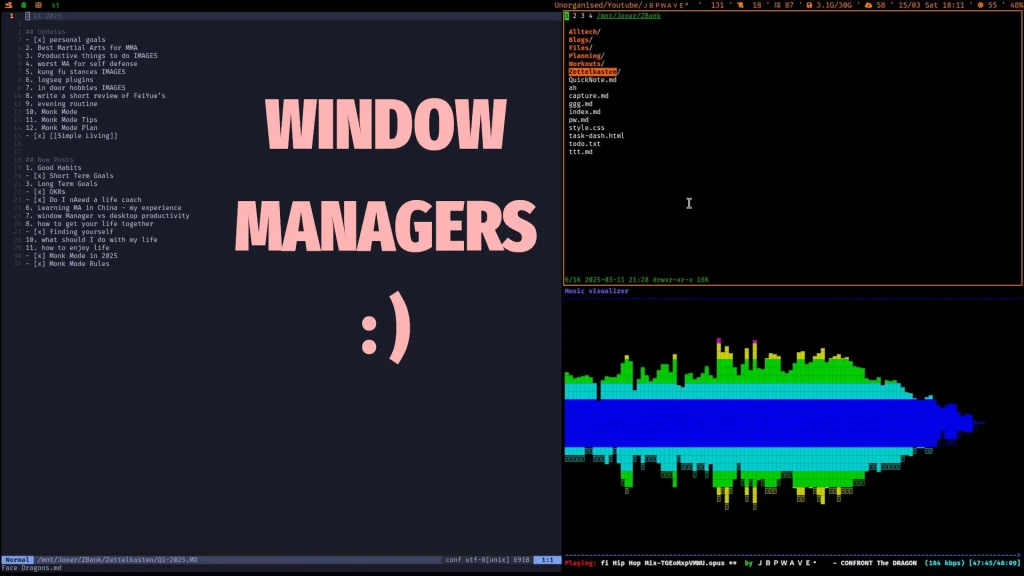
A Tiling Window Manager is a piece of software that organizes application windows into a non-overlapping grid. Instead of windows floating on top of each other, they are “tiled” like bricks in a wall or tiles on a floor.
Key Characteristics of TWMs
- Automatic Layouts: Windows are automatically resized to fill the screen.
- Keyboard-Centric: Almost every action (moving windows, resizing, launching apps) is done via the keyboard.
- Workspaces: Instead of one cluttered desktop, you use multiple virtual desktops (workspaces) assigned to specific tasks.
While TWMs have been a staple of the Linux community for decades (with managers like i3wm, Sway, and dwm), GlazeWM brings this power to the Windows ecosystem, allowing PC users to experience the same high-level efficiency.

How Tiling Window Managers (TWM) Revolutionize Personal Productivity
The transition from a traditional floating window environment to a Tiling Window Manager like GlazeWM is more than just a visual change; it is a fundamental shift in how you interact with your computer. To understand why power users and developers are obsessed with this workflow, we must break down the three core pillars of TWM productivity: the Mouse-less Workflow, Intelligent Workspace Organization, and Systematic Screen Real Estate.
The “Mouse-Less” Workflow: Staying in the Flow State
In a traditional desktop setup, the mouse is the primary tool for navigation. While intuitive, the mouse is actually a major “productivity killer” for those who spend their day typing. Every time you move your hand from the keyboard to the mouse to resize a window or click a taskbar icon, you experience a Context Switch.
The Cost of Physical Movement: When your hand leaves the “home row” of the keyboard, your typing speed drops to zero. More importantly, your brain has to shift focus from creating (typing code or text) to navigating (aiming a cursor at a small button). This break, though it only takes seconds, can disrupt your “Flow State” that psychological zone where you are most productive.
- The Modifier Key System: Tiling Window Managers solve this by using Modifier Keys (usually the Windows or Alt key). By combining these with standard keys, your keyboard becomes a powerful command center.
- Instant Execution: Instead of searching for an icon, Win + Enter launches your terminal or browser instantly.
- Directional Navigation: Using Win + H/J/K/L (Vim-style navigation), you can move your focus between windows with surgical precision.
- The Result: You become a “Keyboard Maestro.” By keeping your hands stationary, you maintain a continuous rhythm. Over months of work, this saves hours of cumulative time and significantly reduces physical fatigue.
Intelligent Workspace Organization Eliminating Visual Clutter
The average professional has between 5 and 15 applications open at once. In a floating window manager, these apps eventually become a “window soup” a messy pile of overlapping boxes where you spend half your time hitting Alt+Tab just to find a specific Slack message or a browser tab.
- Categorization through Workspaces: TWMs utilize a sophisticated “Workspace” or “Virtual Desktop” system. Rather than having everything on one screen, you categorize your digital life:
- Workspace 1 (Research): Your primary browser with all documentation and technical resources.
- Workspace 2 (Development): Your IDE, Code Editor, and Compiler.
- Workspace 3 (Communication): Slack, Discord, and Email clients.
- Workspace 4 (Leisure/Admin): Spotify, System Monitors, or File Explorers.
- Contextual Focus: With a single keypress (e.g., Win + 2), you jump instantly to your coding environment. Everything else the distracting pings of Slack or the clutter of a browser—is hidden from view.
- Cognitive Benefits: By isolating your tasks into specific workspaces, you reduce Cognitive Load. Your brain knows exactly where every tool is located, allowing you to focus 100% on the task at hand without being distracted by background windows.
Consistent Screen Real Estate: The “Master-Stack” Logic
One of the most frustrating parts of Windows multitasking is the constant need to “snap” windows or manually adjust their borders so you can see two things at once. Tiling Window Managers automate this through mathematical logic, specifically the Master and Stack layout.
- Algorithmic Layouts: In a TWM, you don’t “place” windows; the software does it for you based on a layout. A popular choice is the 70/30 split:
- The Master Area: Your primary task (like a code editor) takes up the largest portion of the screen (e.g., 70%). This is where your eyes stay most of the time.
- The Stack Area: Secondary windows (terminals, folder explorers, or reference notes) are automatically tiled in the remaining 30% of the screen.
- Dynamic Resizing: If you open a third window in the Stack, the TWM automatically shrinks the existing stack windows to make room, ensuring that no window ever overlaps another. * The Resulting Efficiency This ensures that your screen real estate is always used at 100% efficiency. There is no “dead space” on your monitor. Whether you are on a small laptop or a massive 49-inch ultrawide, the Tiling Manager ensures your windows are perfectly aligned, providing a consistent and predictable visual environment.
Setting Up Your Workflow with GlazeWM
To get the most out of a Tiling Window Manager on Windows, follow this productivity-focused setup:
Step 1: Define Your Layouts
Most users prefer the Binary Space Partitioning (BSP) layout. This splits the screen in half every time a new window is opened. For a 27-inch monitor, this is the most efficient way to view documentation alongside a text editor.
Step 2: Master the Keybindings
You don’t need to learn 100 commands. Start with these five:
- Focus: Moving between windows.
- Move: Swapping window positions.
- Workspace Switch: Jumping between virtual desktops.
- Close: Killing a focused application.
- Resize: Adjusting the tile gaps.
Step 3: Use the Configuration File
Unlike standard Windows apps, GlazeWM uses a .yaml config file. This is a productivity hack in itself. You can version-control your config on GitHub. If you move to a new computer, you simply copy your config file, and your entire workflow is restored in seconds.
Comparison: TWM vs. Standard Windows Snapping
Microsoft introduced “Snap Layouts” in Windows 11, but it still falls short of a true TWM:
- Automation: Windows Snapping is manual; TWM is automatic.
- Gaps: TWMs allow for “Gaps” between windows, which helps in visual separation and reduces eye strain.
- Bar Integration: TWMs often come with or support customizable status bars (like GlazeWM’s bar) that show system info, workspaces, and time without the bulky Windows taskbar.
Conclusion
Transitioning to a Tiling Window Manager like GlazeWM is more than just a cosmetic change to your desktop; it is a fundamental shift in how you interact with your digital environment. By moving away from the chaotic, mouse-heavy “Floating Window” model and embracing a structured, keyboard-centric grid system, you are reclaiming lost time and reducing the mental friction that leads to burnout.